Move GB WhatsApp Chats to New Phone (2026 Guide)
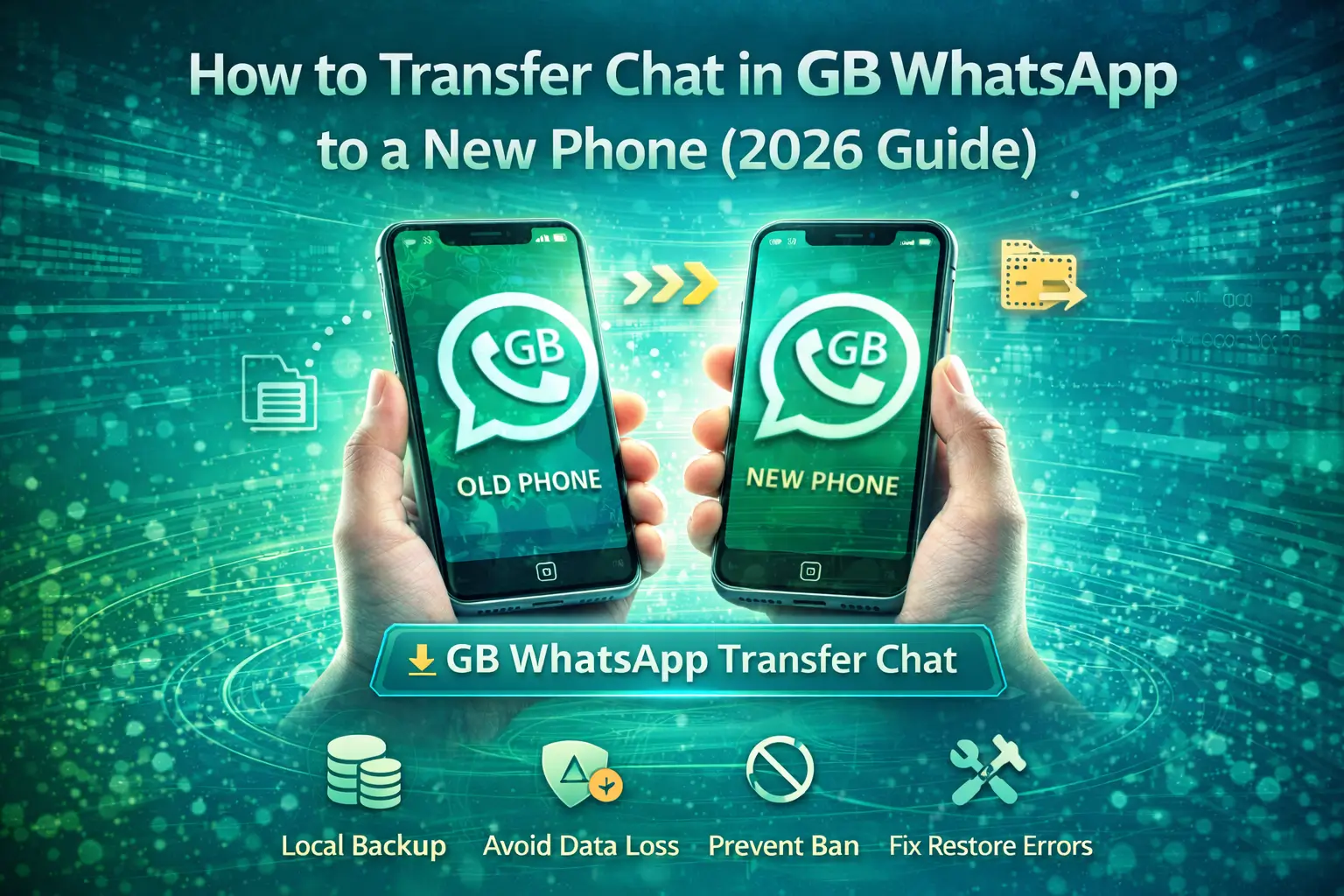
Upgrading to a new phone is exciting, but moving your chats safely is always a concern. When it comes to GB WhatsApp, chat transfer needs extra care because it is not an official app and does not support standard Google Drive backups. A small mistake can lead to lost messages, media, or even account issues, which is why following the right steps matters more than ever in 2026.
What Happens to GB WhatsApp Data When You Change Phones?
When you switch to a new phone, GB WhatsApp does not automatically move your chats and media like the official WhatsApp app. Understanding how your data is stored helps you avoid losing important conversations.
How does GB WhatsApp Store Chats and Media?
GB WhatsApp saves all chats, images, videos, voice notes, and documents locally on your device. This data is usually stored in a dedicated GB WhatsApp or GBWhatsApp folder inside your phone’s internal storage. Unlike official WhatsApp, the app depends heavily on local files rather than synced online backups.
Local Backup vs Cloud Backup
Local backup means your chat data is saved directly on your phone, often in a database file created during manual or automatic backups. Cloud backup, such as Google Drive, is officially supported only by the standard WhatsApp. GB WhatsApp may show cloud options in some versions, but these are unreliable and can fail or cause restore errors. This is why manual file transfer is the safest option.
Why do normal WhatsApp transfer methods fail?
Standard WhatsApp transfer tools are designed for the official app and its verified backup system. GB WhatsApp uses different package names and storage paths, so official transfer methods cannot detect or restore its data properly. As a result, trying to use normal WhatsApp migration tools often leads to missing chats or incomplete restores.
Things You Must Do Before Moving GB WhatsApp Chats
Before transferring GB WhatsApp chats to another phone, proper preparation is critical. Skipping even one step can lead to missing messages, media loss, or restore failures.
Check GB WhatsApp Version Compatibility
Make sure both the old phone and the new phone are using the same GB WhatsApp version or a compatible build. Restoring a backup from a newer version to an older one often fails because of database mismatches.
Free up storage space
GB WhatsApp backups can be large, especially if you share a lot of media. Ensure your new phone has enough free storage to hold chat databases and media files. Low storage can interrupt the restore process and corrupt files.
Verify Phone Number and Permissions
Use the same phone number on the new device. Also, grant GB WhatsApp access to storage, files, contacts, and media. Without these permissions, the app cannot detect or restore backups.
Why does skipping this step cause data loss?
Most GB WhatsApp restore issues happen because backups are incomplete, versions do not match, or permissions are blocked. Preparing your device properly ensures the app can read the backup files and restore your chats without errors.
Where GB WhatsApp Chats and Media Are Stored?
Knowing the exact storage location of GB WhatsApp data makes chat transfer much easier and safer.
Internal storage folder structure
GB WhatsApp stores its data inside your phone’s internal storage, usually in a folder named GBWhatsApp or GB WhatsApp. Inside this folder, you will find subfolders like Databases, Media, and Backups. These folders contain all your messages and shared files.
Database files vs Media files
Chat messages are saved in database files, usually named something like msgstore.db.crypt. These files hold your text conversations and timestamps. Media files such as photos, videos, voice notes, and documents are stored separately inside the Media folder. Both are required for a complete restore.
Understanding msgstore backups for smoother transfer
The msgstore file is the most important backup file. It is created during manual or automatic backups and acts as a snapshot of your chats. Copying the latest msgstore file along with the full Media folder ensures that your chats and attachments restore correctly on the new phone.
Best Methods to Transfer GB WhatsApp Chats Between Phones
Transferring GB WhatsApp chats to a new phone doesn’t have to be complicated. Whether you’re switching devices, upgrading Android versions, or avoiding data loss, the right method can make the process smooth and stress-free. Below are the most reliable ways to move your GB WhatsApp chats safely and efficiently.
Method 1. Move GB WhatsApp Chats to a New Phone Using Local Backup
Using a local backup is the most reliable way to move GB WhatsApp chats, especially when you want an offline transfer without cloud services.
Create a manual local backup.
Open GB WhatsApp on your old phone and go to Settings > Chats > Backup. Tap Back Up and wait until the process completes. This creates the latest msgstore database file and updates your chat backup.
Copy GB WhatsApp folders correctly
Using a file manager, open your internal storage and locate the GBWhatsApp folder. Copy the entire folder, including Databases and Media, to a safe place such as an SD card, USB cable, or your computer. Do not rename or change folder names.
Restore Chats on the New Phone Step by Step
On the new phone, paste the copied GBWhatsApp folder into the same internal storage location before installing GB WhatsApp. Install the app, verify your phone number, and when prompted, tap Restore. The app will detect the local backup automatically.
Why is this the best offline method?
Local backup transfer does not depend on internet speed or cloud syncing. It preserves chat history and media quality and works even when cloud backups fail, making it the safest method for most users.
Method 2. Move GB WhatsApp Chats Using Cloud Storage
Cloud storage can help move GB WhatsApp chats when a direct file transfer is not possible, but it comes with important limitations.
Using Google Drive or third-party cloud services
Some GB WhatsApp versions allow limited Google Drive backup, but this feature is not officially supported and may fail without warning. A safer option is to manually upload the GBWhatsApp folder to cloud services like Google Drive, Dropbox, or OneDrive, then download it on the new phone.
What gets backed up and what does not
When you upload the GBWhatsApp folder manually, chat databases and media files are included. However, app settings, themes, and custom preferences are not backed up. If cloud syncing is interrupted, some media files may be skipped.
Limitations of Cloud Backup with GB WhatsApp
Cloud backups depend on internet speed and storage limits. Corrupted downloads, missing folders, or version mismatches can cause restore failures. Because GB WhatsApp is a modified app, cloud backups are less reliable than local backups and should only be used as a secondary option.
Method 3. Transfer GB WhatsApp Chats Between Android Versions
Transferring GB WhatsApp chats between different Android versions requires extra attention, especially with newer Android security rules.
Moving from an older Android to a newer Android
When upgrading from older Android versions to newer ones, always copy the complete GBWhatsApp folder from the old phone. Paste it into the internal storage of the new phone before installing GB WhatsApp. This ensures the app can detect the backup during setup.
Android 13–15 storage permission issues
Newer Android versions restrict access to internal storage by default. If GB WhatsApp cannot find your backup, go to Settings > Apps > GB WhatsApp > Permissions and allow full access to files and media. Without this permission, the restore option may not appear.
Fixes for restoring detection problems
If GB WhatsApp does not detect the backup, double-check folder names and paths. Make sure the Databases folder contains the latest msgstore file. Restart the phone and reopen the app. In most cases, correct permissions and proper folder placement resolve restore detection issues.
How to Restore GB WhatsApp Chats on the Same Phone?
Restoring GB WhatsApp chats on the same device is straightforward if you have a backup, but careful steps are needed to avoid losing data.
After reinstalling GB WhatsApp
If you uninstall and reinstall GB WhatsApp on the same phone, the app will look for local backups in the GBWhatsApp/Databases folder. During setup, verify your phone number and tap Restore when prompted. This restores all chats and media linked to that backup.
Recovering Chats after App Crash or Update
If GB WhatsApp crashes or updates unexpectedly, your chats can still be restored using the latest local backup. Go to Settings > Chats > Backup, confirm the backup date, and reinstall or restore the app. Copy the backup file again if needed.
When the Restore does not appear automatically
Sometimes GB WhatsApp may not detect a backup. Check that the msgstore.db.crypt file is in the correct folder (GBWhatsApp/Databases) and that folder names are not altered. Also, make sure the app has storage permissions enabled. Restarting the app or the device usually resolves this issue.
Common Problems While Moving GB WhatsApp Chats and Their Fixes
Transferring GB WhatsApp chats can sometimes run into issues. Here are the most common problems and how to fix them.
Backup not detected
If GB WhatsApp does not detect your backup, ensure the msgstore.db.crypt file is in the correct folder: GBWhatsApp/Databases. Also, check that the folder and file names are unchanged and that the app has full storage permissions. Restarting the app usually helps.
Chats restored, but media missing
This happens when the Media folder is incomplete or misplaced. Make sure the entire GBWhatsApp/Media folder is copied to the new device. Avoid moving only individual files; the folder structure must remain intact.
The App is crashing during Restore
Crashes often occur due to version mismatches between the backup and the installed GB WhatsApp. Update both phones to compatible versions, or use the latest stable GB WhatsApp APK. Clearing the app cache before restoring can also help.
“Restore skipped” issue explained
If you see “Restore skipped,” it usually means GB WhatsApp cannot read the backup file. Check that the backup file is the most recent and located in the Databases folder. Grant storage permissions and retry the restore process.
Tips to Avoid Data Loss When Transferring GB WhatsApp
Transferring GB WhatsApp chats safely requires careful handling. Following these tips will help you avoid losing messages or media.
Folder naming mistakes to avoid
Do not rename the GBWhatsApp folder or any subfolders like Databases and Media. Even small changes in folder names can prevent the app from detecting backups, leading to failed restores.
Why file managers matter?
Using a reliable file manager ensures that all files, including hidden database files, are copied correctly. Avoid simple copy-paste methods that skip system or hidden files. A proper file manager preserves folder structure and integrity.
Best practices for safe long-term backups
Always keep multiple backups of your GB WhatsApp chats: one local backup on your phone, one on an SD card, and optionally one on a cloud service. Update backups regularly and check file integrity before switching devices to ensure your chats and media are fully recoverable.
Is It Safe to Move GB WhatsApp Chats?
Moving GB WhatsApp chats is generally safe if you follow proper steps, but there are risks to be aware of.
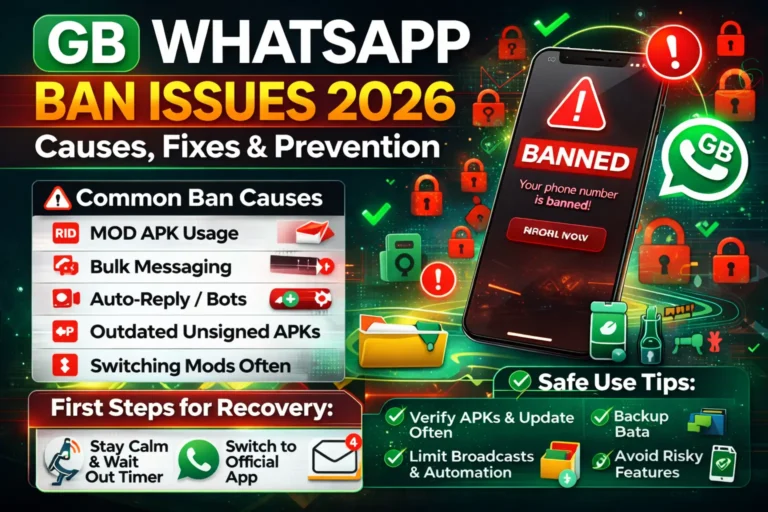
Ban risks during Reinstallation
Since GB WhatsApp is a modified app, reinstalling it or switching devices frequently may trigger temporary or permanent bans from official WhatsApp servers. Always use the latest stable GB WhatsApp version to reduce this risk.
Data Privacy Concerns
Transferring backups via cloud services or third-party apps can expose sensitive messages and media. Local offline backups are safer, as they stay on your device and avoid potential leaks.
How to reduce account suspension risk?
Use the same phone number, avoid using cracked or outdated APKs, and restore chats from verified backups only. Limiting automation features during the first few hours after transfer also helps maintain account safety.
GB WhatsApp Chat Transfer vs Official WhatsApp Transfer
When moving chats, GB WhatsApp and the official WhatsApp handle backups differently, and knowing the differences helps you choose the safest method.
Feature comparison
Official WhatsApp offers fully supported cloud backups via Google Drive or iCloud, automatic restore prompts, and guaranteed media sync. GB WhatsApp relies on local backups and manual file transfers, which allow more control over media and themes but require careful handling.
Ease of use
Official WhatsApp is simpler for most users: sign in, verify your number, and restore from the cloud. GB WhatsApp transfers are more hands-on, requiring file management, folder copying, and attention to version compatibility.
Safety and reliability differences
Official WhatsApp transfers are more reliable and less likely to cause data loss or account issues. GB WhatsApp transfers carry a small risk of failed restores or temporary bans if steps are skipped or versions mismatch. However, when done correctly, GB WhatsApp allows a complete offline transfer, including custom settings and media that the official app may not preserve.
Frequently Asked Questions (FAQs)
Can I move GB WhatsApp chats without a backup?
No. GB WhatsApp stores all chats and media locally. Without a backup, there is no way to transfer data safely to another device.
Will chats move if I change my number?
Yes, but you must first link your new number in GB WhatsApp using the Change Number feature before transferring chats. Skipping this step can cause restore issues.
Are deleted chats recoverable after transfer?
No. Once a chat is deleted and not included in the latest backup, it cannot be restored on the new device. Always back up before deleting messages.
Does media quality change?
No. When you use local backups or copy the Media folder properly, photos, videos, and voice notes retain their original quality.
Can I transfer GB WhatsApp chats between Android and iPhone?
Direct transfer is not supported. You need third-party tools or email chat history to move messages between Android and iOS.
How often should I back up before switching phones?
Ideally, create a backup immediately before moving to a new device to ensure all recent chats and media are included.
Conclusion
The safest and most reliable way to move GB WhatsApp chats is to use local backups. Copy the entire GBWhatsApp folder, including databases and media, to the new phone before installing the app. This method preserves all messages, media, and custom settings without relying on cloud services.
Users who frequently switch devices or use unofficial versions should be cautious, as repeated reinstalls can trigger temporary or permanent bans.
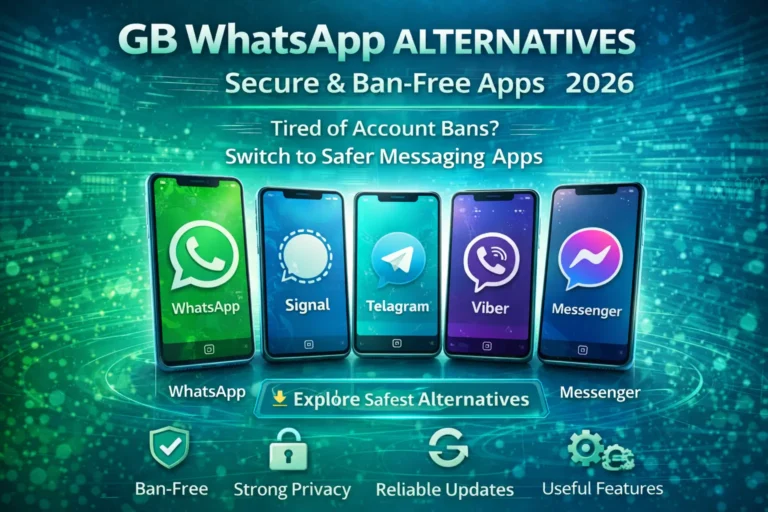
If reliability and official support matter more than custom features, consider migrating to official WhatsApp, which offers seamless cloud backups and multi-device support.